Explainer · 8 October 2026
Meta's Muse,
in plain words.
Muse is Meta's new AI agent. You tell it what you need done, and it does the task itself. Here is what it is, what people use it for, and how to add it on Instagram.
The short version
Muse in six slides.
Swipe through. Each slide is one thing to know.
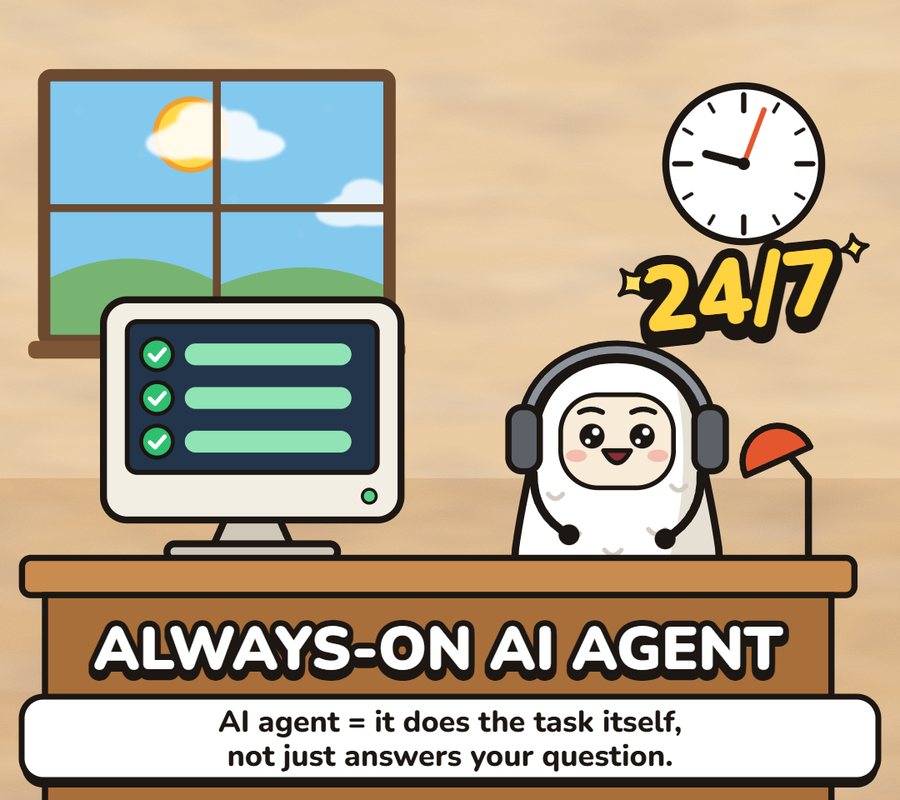
It does the task.
A chatbot answers your question. An AI agent does the job for you. Muse is an agent.
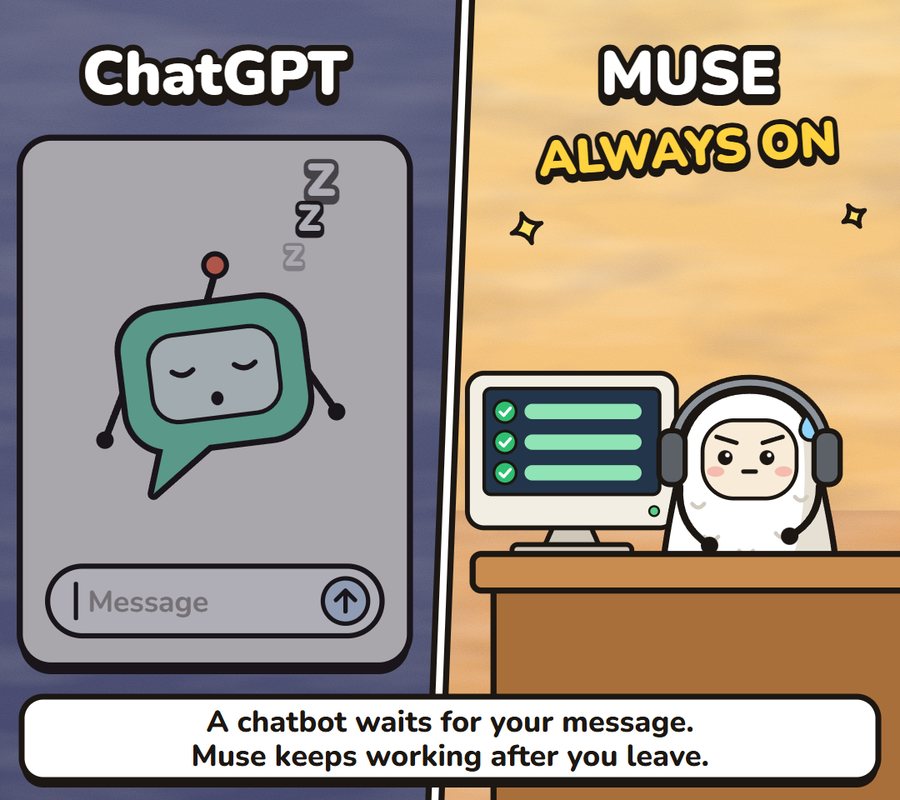
It doesn't wait for you.
A chatbot stops when you leave. Muse keeps going after you close the app, and comes back when it is done or needs a yes from you.
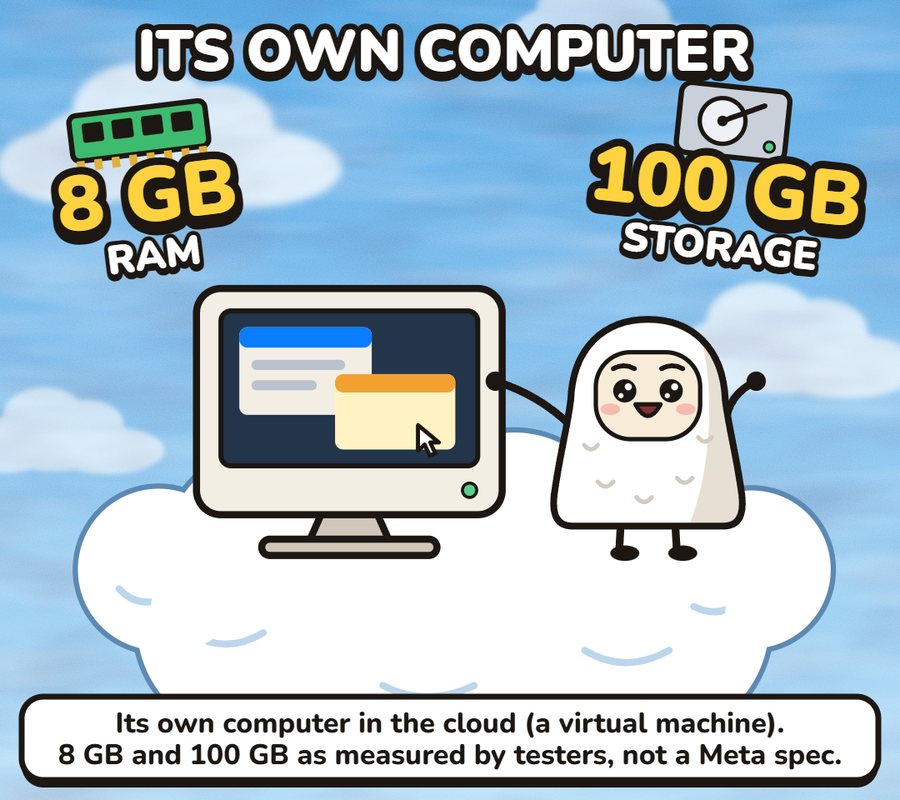
It has its own computer.
Each Muse runs on its own computer in the cloud, with its own browser. Testers measured about 8 GB of memory and 100 GB of storage. Meta has not published those numbers.
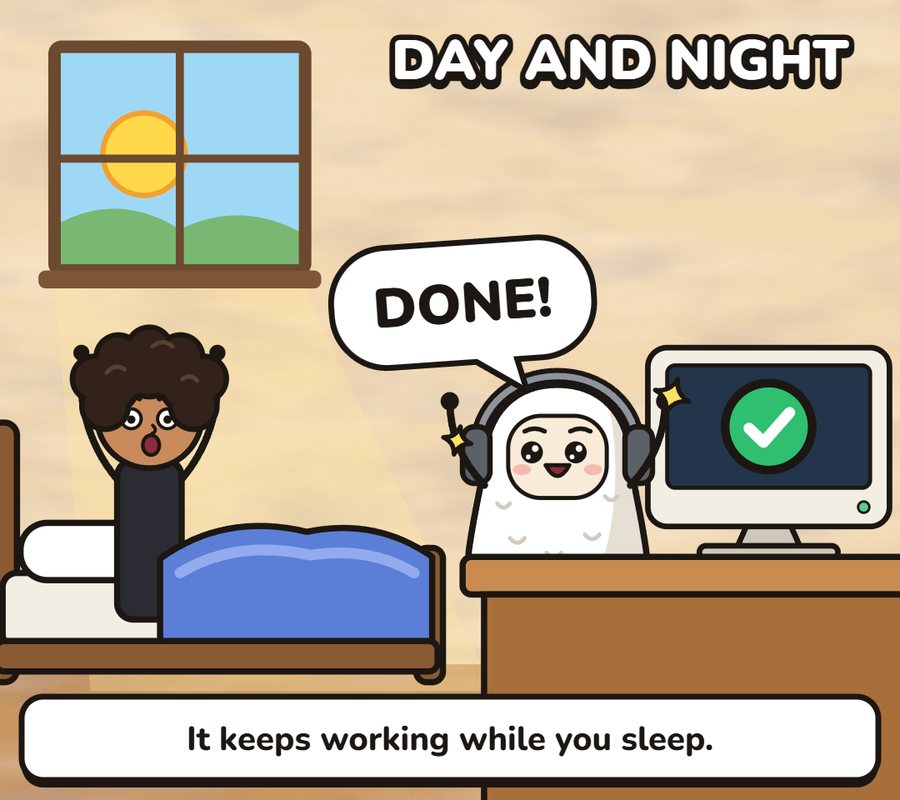
It works while you sleep.
Give it something slow, like tracking a price or waiting on a reply. It carries on overnight and tells you what changed.
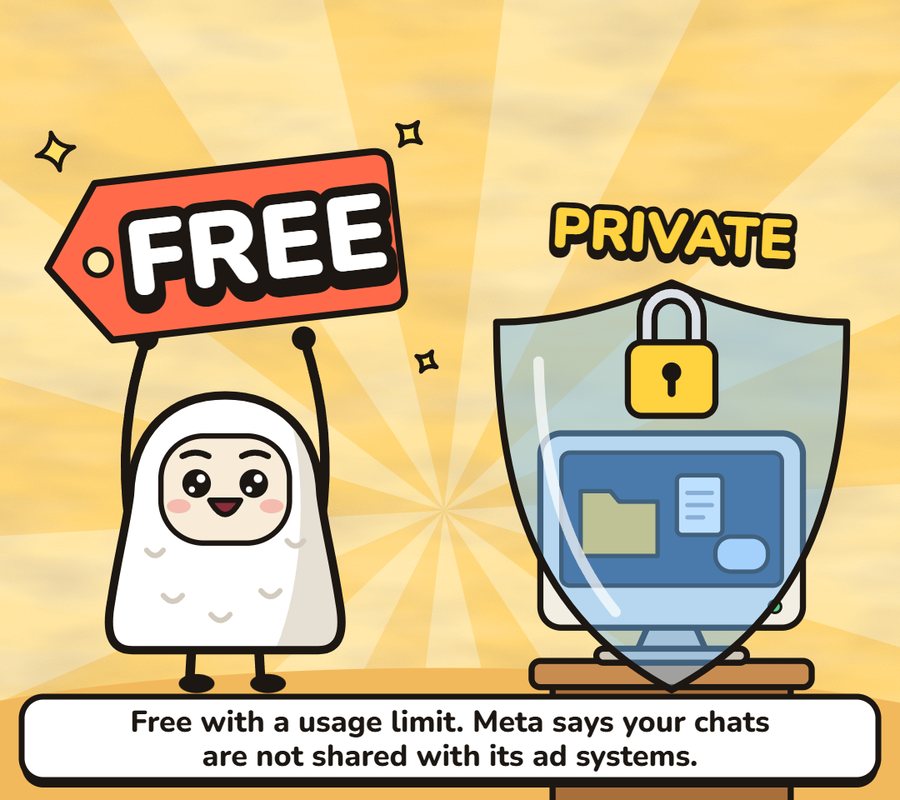
Free to start.
Free with a usage limit. Paid plans are $20 and $100 a month. Meta says your chats are not shared with its ad systems.
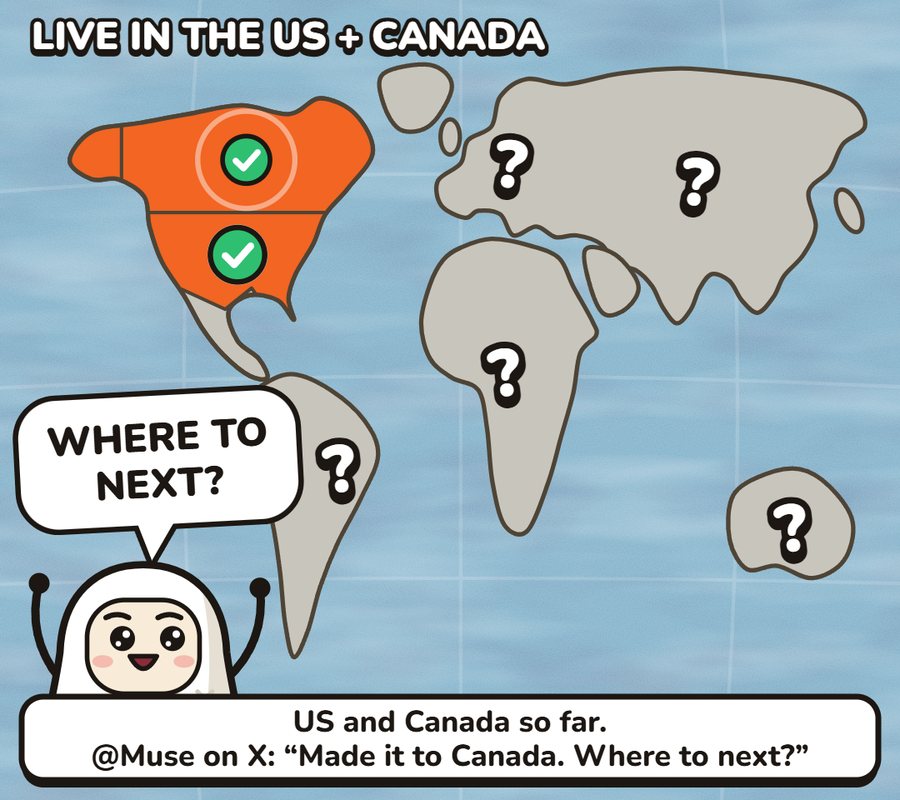
US and Canada only, for now.
Meta has not said which country is next, or when.
Swipe sideways →
Use cases
What to use it for.
These are the jobs Meta shows Muse doing in its own announcement. The example asks are mine, to show how you would say it.
-
Email.
It can read your mail and write replies. You choose whether it can only read, or also send for you.
Example: "Reply to the school and say Kiran will be there on Friday."
-
Travel.
It can book travel. In Meta's demo it also collects the quotes for a trip and keeps a running list of what each part costs.
Example: "Find flights to Boston for the first weekend of November and show me the three cheapest."
-
Shopping.
It finds the item and fills the cart. Before it pays, it shows you the order with two buttons: Allow and Deny. It pays with a one-time card, so the shop never sees your real card number.
Example: "Find a travel stroller under $100 and show me before you buy."
-
Forms and paperwork.
It opens a browser and fills in forms for you, like a school permission slip that came by email.
Example: "Fill in the field trip form from my inbox and send it back."
-
Bills and deals.
Meta says it can negotiate for you. Its examples are lowering a bill and selling a car for more.
Example: "My internet bill went up. Ask them for a better price."
-
Food and plans.
It can turn a recipe reel you saved on Instagram into a grocery list, suggest a menu for a dinner, and remember what your friends can't eat before it sends the invites.
Example: "Make a grocery list from the pasta reel I saved yesterday."
-
Long goals.
Tell it a goal and it makes a plan, then keeps the plan moving week by week. Meta's example is a training plan that changes when the rest of your life does.
Example: "I want to run 10 km by January. Plan my weeks around my work calendar."
You stay in charge
What it asks you first.
This is what Meta says about control.
- It asks before it sends or pays. Sending an email and making a purchase both need your yes.
- It can't see your passwords or cards. They go into a locked store. Muse can use them, but not read them.
- You pick the apps. You choose what it connects to and how much it can do there. You can disconnect any of them later.
- You can see everything it did. It keeps a full list of what it has done and what it plans to do.
- Training is on unless you turn it off. Meta says you can opt out of your chats being used to train its AI.
Try it
How to get it.
You need to be in the US or Canada.
- On Instagram. Open your profile and tap "+ Add your Muse". It has also started showing up in the share menu.
- On its own. The Muse app on iPhone and Android, or muse.ai in a browser.
- On WhatsApp. You can message it there like any other chat.
- Anywhere else? Not yet. If you are outside the US and Canada, there is no date.
Further reading
Sources.
- Introducing Muse: The World's First Personal AI Agent Built for EveryoneMeta ↗
- The Future Is for Everyone: Muse for Small BusinessMeta ↗
- Muse plans and the free usage limitMeta Help ↗
- Meta Muse AI agent now available on Instagram, here is how to set it upDigit ↗
- Meta's Muse AI pops up on Instagram share buttonGeo News ↗
- Meta Muse Specs: What Meta's Free AI Agent Runs OnStark Insider ↗